
VidMate Old Version APK Download for Android Phones
Choose a VidMate old version from the download list below by checking the Android requirement, build number and file size shown for each APK. Available files range from version 1.65 to 4.1803, so you can compare previous releases without guessing from a year label or shortened version name. Use the button beside your chosen build, then review the installation notes before replacing the copy already on your phone.
VidMate is an Android video downloader, and this independent archive is not a VidMate-owned website. We record the version, package name, file size and SHA-256 checksum of each listed APK before adding its download link.
Choose a VidMate Old Version APK to Download
The archive is grouped by major version number so you can identify the exact APK instead of relying on a year label or a shortened name such as 3.5 or 4.0. The details below come from the supplied files: each one uses the package name com.nemo.vidmate, while the build code, minimum Android level, file size and supported CPU types vary.
Match the exact version first, especially where the longer build numbers look similar. Then use the direct download button in that row so the chosen file and action stay together.
VidMate 4.x builds
These four files require at least Android 4.0 (API 14) and include code for the older armeabi CPU type. Version 4.1803 targets a newer Android API than the other files in this group, but its minimum installation requirement remains API 14. If your record names code 40811, the VidMate 4.0811 build 40811 page identifies that exact APK.
| Version | Build code | Minimum Android | File size | CPU type | Download action |
|---|---|---|---|---|---|
| 4.1803 | 41803 | Android 4.0+ (API 14) | 12.69 MiB | armeabi | Download VidMate 4.1803 APK |
| 4.1604 | 41604 | Android 4.0+ (API 14) | 13.02 MiB | armeabi | Download VidMate 4.1604 APK |
| 4.0811 | 40811 | Android 4.0+ (API 14) | 13.63 MiB | armeabi | Download VidMate 4.0811 APK |
| 4.0401 | 40401 | Android 4.0+ (API 14) | 12.66 MiB | armeabi | Download VidMate 4.0401 APK |
VidMate 3.x builds
The 3.x files span two Android requirements. Builds from 3.01 through 3.24 require Android 2.2 (API 8), while 3.41, 3.46 and 3.5701 require Android 4.0 (API 14).
| Version | Build code | Minimum Android | File size | CPU type | Download action |
|---|---|---|---|---|---|
| 3.5701 | 35701 | Android 4.0+ (API 14) | 9.10 MiB | armeabi, armeabi-v7a | Download VidMate 3.5701 APK |
| 3.46 | 346 | Android 4.0+ (API 14) | 7.64 MiB | armeabi, armeabi-v7a | Download VidMate 3.46 APK |
| 3.41 | 341 | Android 4.0+ (API 14) | 8.30 MiB | armeabi, armeabi-v7a | Download VidMate 3.41 APK |
| 3.24 | 324 | Android 2.2+ (API 8) | 6.04 MiB | armeabi, armeabi-v7a | Download VidMate 3.24 APK |
| 3.23 | 323 | Android 2.2+ (API 8) | 6.14 MiB | armeabi, armeabi-v7a | Download VidMate 3.23 APK |
| 3.22 | 322 | Android 2.2+ (API 8) | 6.13 MiB | armeabi, armeabi-v7a | Download VidMate 3.22 APK |
| 3.21 | 321 | Android 2.2+ (API 8) | 5.95 MiB | armeabi, armeabi-v7a | Download VidMate 3.21 APK |
| 3.18 | 318 | Android 2.2+ (API 8) | 5.99 MiB | armeabi, armeabi-v7a | Download VidMate 3.18 APK |
| 3.17 | 317 | Android 2.2+ (API 8) | 5.97 MiB | armeabi, armeabi-v7a | Download VidMate 3.17 APK |
| 3.16 | 316 | Android 2.2+ (API 8) | 5.93 MiB | armeabi, armeabi-v7a | Download VidMate 3.16 APK |
| 3.15 | 315 | Android 2.2+ (API 8) | 5.91 MiB | armeabi, armeabi-v7a | Download VidMate 3.15 APK |
| 3.11 | 311 | Android 2.2+ (API 8) | 5.50 MiB | armeabi, armeabi-v7a | Download VidMate 3.11 APK |
| 3.01 | 301 | Android 2.2+ (API 8) | 4.83 MiB | armeabi, armeabi-v7a | Download VidMate 3.01 APK |
VidMate 2.x and 1.x builds
This group contains the earliest files included in the current archive. They all declare Android 2.2 (API 8) as the minimum, but their CPU lists are not identical. The VidMate 2.11 APK file details show how build 111 compares with nearby files.
| Version | Build code | Minimum Android | File size | CPU type | Download action |
|---|---|---|---|---|---|
| 2.58 | 258 | Android 2.2+ (API 8) | 5.20 MiB | armeabi, armeabi-v7a | Download VidMate 2.58 APK |
| 2.47 | 247 | Android 2.2+ (API 8) | 5.03 MiB | armeabi, armeabi-v7a, mips, x86 | Download VidMate 2.47 APK |
| 2.22 | 222 | Android 2.2+ (API 8) | 3.78 MiB | armeabi, armeabi-v7a, mips, x86 | Download VidMate 2.22 APK |
| 2.19 | 219 | Android 2.2+ (API 8) | 3.75 MiB | armeabi, armeabi-v7a, mips, x86 | Download VidMate 2.19 APK |
| 2.15 | 215 | Android 2.2+ (API 8) | 3.44 MiB | armeabi, armeabi-v7a, mips, x86 | Download VidMate 2.15 APK |
| 2.11 | 111 | Android 2.2+ (API 8) | 3.27 MiB | armeabi, armeabi-v7a, mips, x86 | Download VidMate 2.11 APK |
| 1.65 | 65 | Android 2.2+ (API 8) | 3.35 MiB | armeabi, armeabi-v7a, mips, x86 | Download VidMate 1.65 APK |
How to Choose the Right VidMate APK for Your Phone
Start with your phone’s Android version instead of choosing the highest or lowest build number. After that, confirm the exact version, package name and CPU support shown for the file.
Start with the Android requirement
Open Settings > About phone and check the Android version installed on the device. The listed files use two minimum levels: Android 2.2 (API 8) for builds from 1.65 through 3.24, and Android 4.0 (API 14) for 3.41, 3.46, 3.5701 and the four 4.x builds. The VidMate 3.41 Android 4.0 check explains that version’s API 14 requirement.
Meeting the minimum API means the APK declares that Android level as its lower limit. It does not guarantee that the app will install correctly or that old online functions will still respond on that phone.
Confirm the exact version and package name
Use the full version string shown in the table because 4.1803 is a specific build, while a shortened label such as 4.1 can refer to more than one file. The build code gives you a second identity check: for example, version 4.1803 carries code 41803, while version 3.5701 carries code 35701. The VidMate 3.5701 build 35701 page explains why the full number matters more than a broad 3.5 label.
All 24 selected files identify themselves as VidMate under the package name com.nemo.vidmate. Check the currently installed version before attempting a rollback, since Android may reject a lower build over a newer installation even when the package name matches.
Compare file size and architecture
File size helps you confirm that you have the intended APK, but it does not show how fast the app will run or how much memory it will use after installation. A smaller file is therefore not automatically the better choice for an older phone.
The CPU column shows which processor types are included inside each file. armeabi and armeabi-v7a are 32-bit ARM types, while some earlier builds also contain mips and x86; this information is useful for device matching, but architecture support alone does not guarantee successful installation.
What an Older VidMate APK Can and Cannot Change
Changing the APK changes the VidMate code and resources installed on the phone. An older build may show an earlier interface or accept a lower Android version, but it cannot change the device hardware, Android system or availability of an online service.
What changes when you install an older build
Each build has its own version code, app resources, Android requirement and requested permissions. Those differences can affect what appears inside the app, but the supplied files have not been functionally tested on every phone or Android version.
A rollback also does not guarantee that the current app data will remain in place. Android may block a lower build over a newer installation, and removing the installed app first can delete its private data.
Why a VidMate Old Version May Lose Online Access
VidMate depends on remote services and external websites for some online functions. An APK can install and open while search, playback or downloading still fails because an old connection no longer responds or a source website has changed.
Moving to another older build cannot repair a problem that exists outside the app. After installation, check the basic screens and the specific online function you need before deciding that the version is suitable.
An older APK also does not change copyright rules or a website’s download terms. Save only media you are allowed to download and follow the rules of the source service.
Check These Details Before Downloading
Write down the version already installed and protect anything important before changing the APK. These checks take less time than trying to recover settings or app data after an uninstall.
Record the installed version first
Open Settings > Apps > VidMate and look for the version under App info; the exact menu name can differ between phones. Save a screenshot or note the number so you know which build was installed before the change.
Compare that number with the full version and build code in the download table. If the selected build code is lower, Android may reject a direct installation, so do not remove the current app until you have considered what data could be lost.
Protect app data and leave enough storage
Back up anything inside VidMate that you cannot replace, and check where downloaded media is stored. Uninstalling an app can remove its private data, so do not assume that every saved item or setting will remain.
Leave more free storage than the APK size shown in the table because Android needs working space while preparing the installation. If the phone is almost full, clear space before downloading the file.
Review the package and requested permissions
All files in the download list use the package name com.nemo.vidmate, but their requested permission counts are not identical. A matching package or a shorter permission list does not prove safety, so read the Android permission prompts and decline access that does not fit how you intend to use the app.
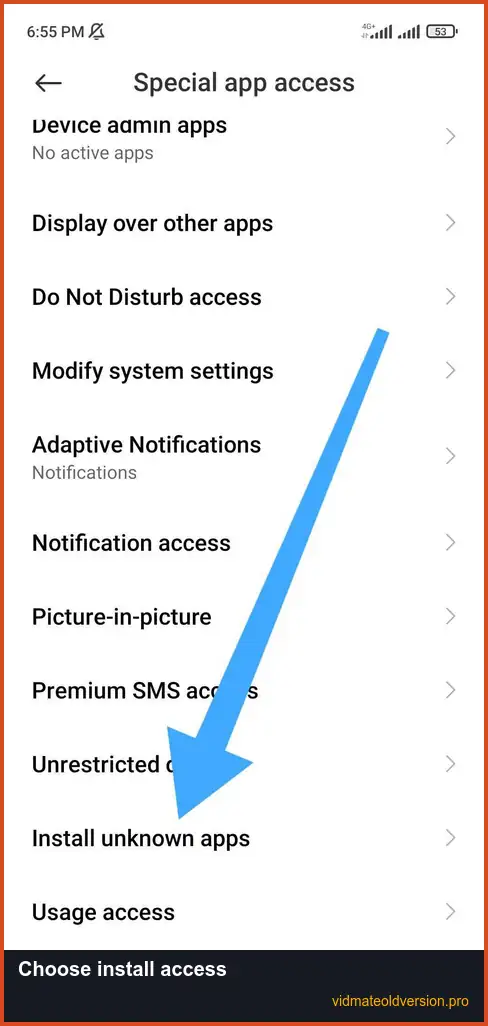
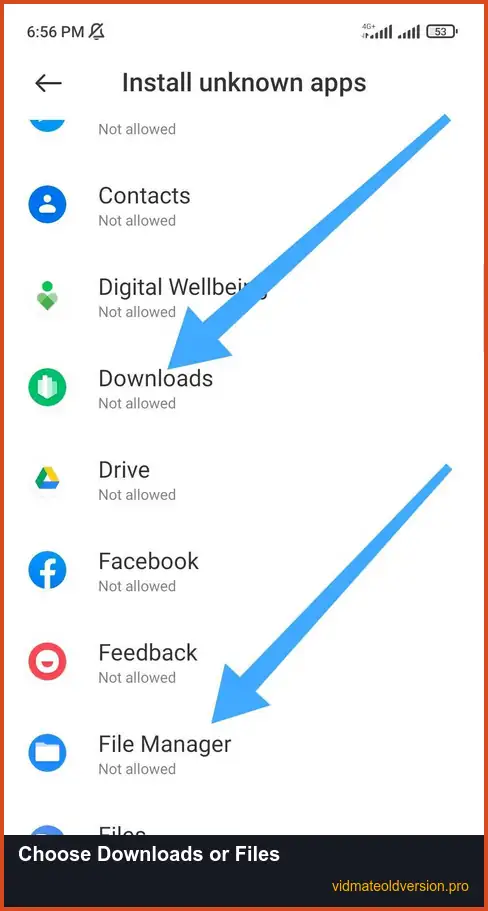
Android assigns the Install unknown apps setting to the browser or file manager used to open the APK. Enable it only for that source when needed, then turn it off again after the installation attempt.
How to Install an Older VidMate APK on Android
Use these six steps after choosing the exact build from the table near the top of the page. Keep the note of your current version and any important app data before starting, because a downgrade may not install over a newer copy.
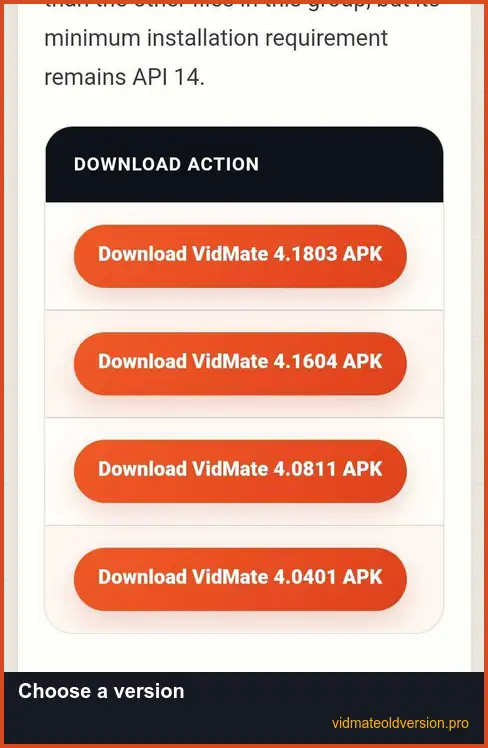
Step 1
Choose the exact APK
Return to the build table and select the full version number you need. Check its minimum Android level and CPU type again instead of choosing only by file size.
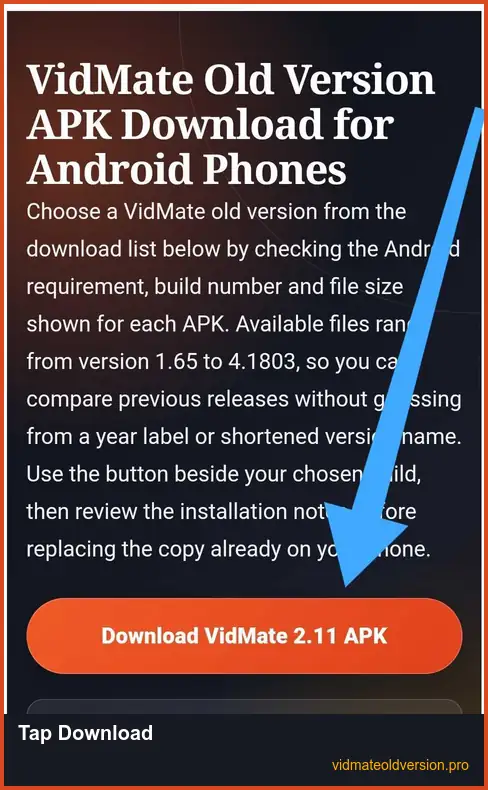
Step 2
Download the selected file
Tap the download button in the same row as your chosen build and wait for the browser to finish. Do not open a partial download or a file whose size differs clearly from the value shown in the table.
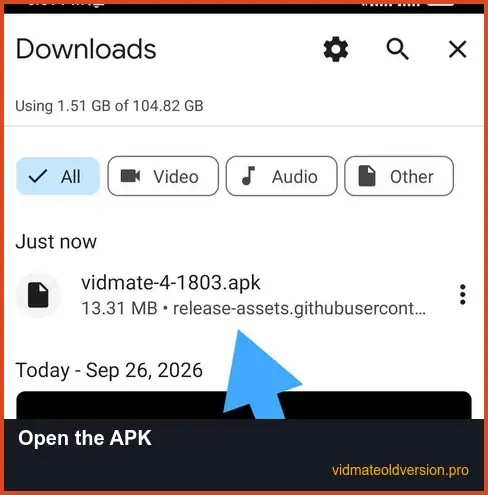
Step 3
Find the APK on your phone
Open the browser’s download list or the phone’s file manager, then go to Downloads. Tap the APK with the same version number you selected in the table.
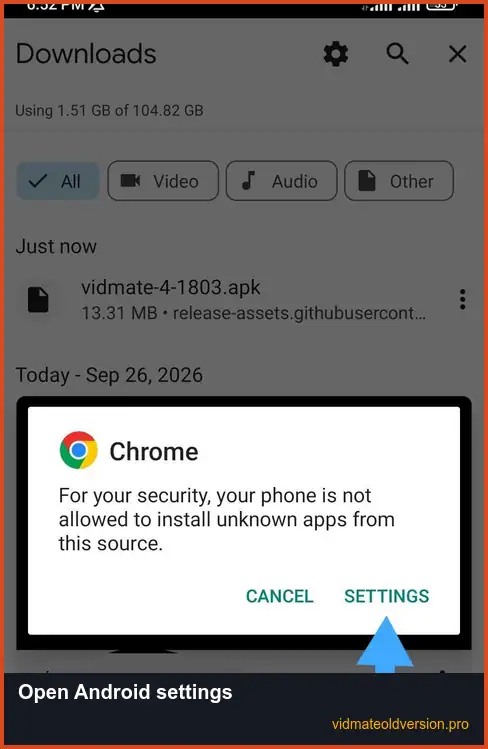
Step 4
Open the source setting
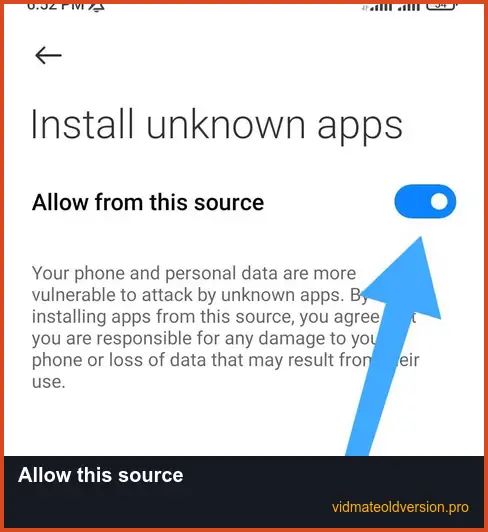
If Android blocks the file, tap Settings on the warning. The phone should open the permission page for the browser, Downloads app or file manager that launched the APK.
Step 5
Allow that source and install
Turn on Allow from this source only for the app that opened the APK, then return to the file and review the Android installation prompt. Stop if the phone shows a security warning you do not understand, and turn this permission off again after the attempt.
Step 6
Open VidMate and check the result
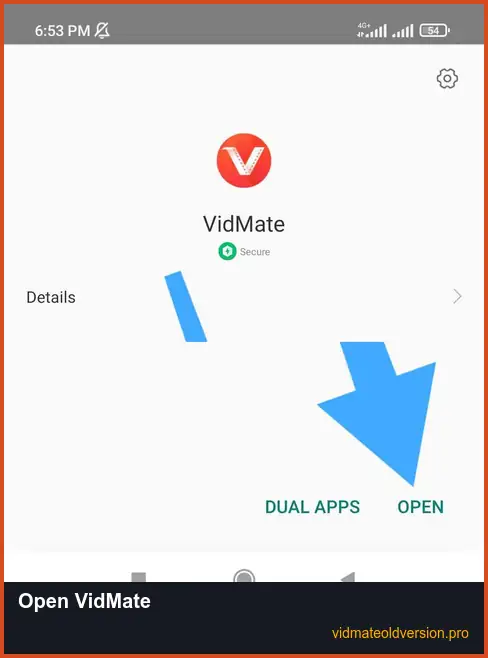
Open VidMate from the installer screen or app drawer and confirm that its main screen loads. Test the specific online function you need as well, because a completed installation does not prove that an older service connection still works.
If Android does not open the permission screen
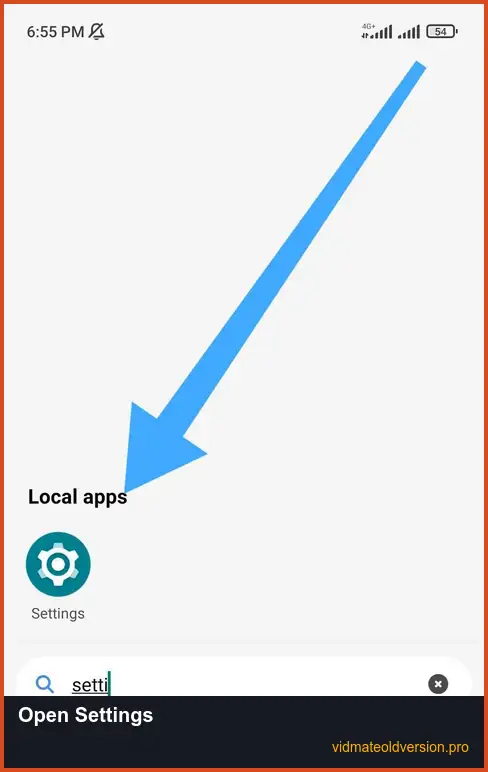
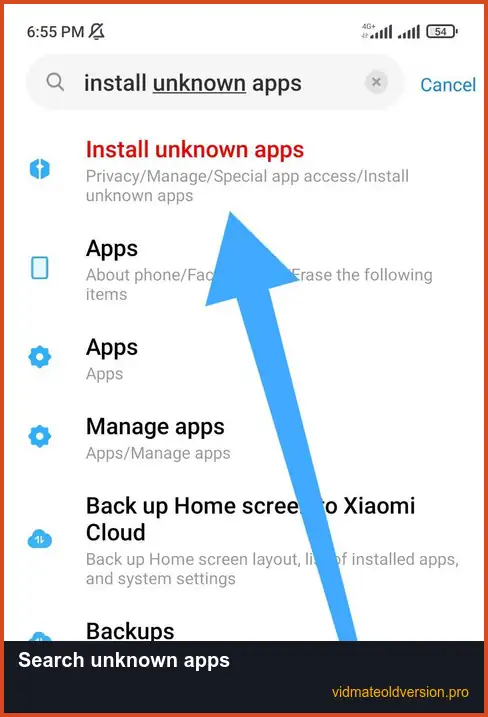
Menu names differ between Android brands. Open Settings, search for Install unknown apps, choose that result, then select the Downloads app, browser or file manager you used to open the APK.
Fix VidMate APK Installation and Opening Problems
Start with the exact message shown by Android instead of repeatedly downloading different builds. The checks below separate an installation conflict from a damaged file or an online function that is no longer responding.
Android says “App not installed”
Compare the installed version with the selected build code first. Android normally rejects a lower version code as an update over a newer copy, even when both files use com.nemo.vidmate.
The same message can appear when the installed copy uses a different signing certificate. Removing that copy may clear private app data, so back up what matters before deciding whether to uninstall it.
If VidMate is not currently installed, check the minimum Android level, CPU type and available storage. If the saved file appears incomplete or its size does not match the selected row, download it again before retrying.
Android reports a package parsing problem
A parsing message commonly points to an incomplete APK, a damaged download or a package that the Android version cannot read. Compare the saved file size with the table, download it again if necessary, and confirm that the phone meets the listed minimum API.
Do not keep changing security settings when the same file repeatedly produces a parsing error. Choose another build only when its documented Android requirement and CPU type are a better match for the device.
The app opens but downloads or online services fail
Confirm that the phone has a working internet connection and that its date and time are correct, then retry one basic action. Also review any permission that the app genuinely needs for saving a file, without granting unrelated access simply to clear an error.
If the app opens but the same online function keeps failing, an old service connection or external source may no longer respond. Installing several nearby builds may not solve a server-side change, so treat installation success and online availability as separate results.
How We Check Each VidMate APK File
We inspect the supplied APK files without installing or opening them. These file-only checks document each file’s identity and flag issues for review, but they do not reproduce how every build behaves on a real phone. The current file review was completed on 25 September 2026.
Metadata and identity checks
Android SDK tools read the app label, package name, version, build code, minimum Android level and target Android level. We also record the requested permissions, included CPU types and local file size, then compare the extracted version with the filename before adding the build to the download list.
Signature and hash checks
Each file receives a SHA-256 hash, and Android signing tools confirm whether its APK signature can be verified. The files in the download list share the package com.nemo.vidmate and the same digital signing certificate. A matching certificate shows only that the files were signed with the same key; it does not establish developer ownership, safety or compatibility with every device.
The hash identifies the exact local file and helps detect an unexpected change later. A hosted download should be treated as the same file only after its hash has been compared with that recorded value.
Malware scan and review limits
Microsoft Defender scanned the supplied APK folder and was set not to remove files automatically, allowing flagged items to be separated for review. The supplied 3.19 file produced a potentially unwanted application detection and is excluded from the download list until a replacement can pass the complete review.
A scan result with no detection is not a safety guarantee. Static inspection also cannot prove successful installation, working online services or full compatibility with a particular phone.
Two signed files for VidMate 3.15 build 315 had the same visible version details but were not exact copies. Only the chosen file appears in the chooser so one version number cannot lead to two different downloads.
If a displayed version, size or Android requirement does not match the file you receive, report it through the Contact page with the build number and the detail that differs. Do not include passwords, account details or other private information in the report.
Questions About VidMate APK Downloads and Older Builds
Which older build should I choose first?
Choose the exact version when you already know the build you need. Otherwise, start with the closest listed build below the one causing trouble, provided its Android requirement and CPU type match your phone. Moving straight to the earliest file can introduce more version differences than necessary.
Why is VidMate 3.19 missing from the download list?
The supplied 3.19 APK was separated after Microsoft Defender reported a potentially unwanted application. It will not receive a download button unless a replacement file completes the same metadata, signature, hash and malware-review checks without that unresolved result.
Why is only one VidMate 3.15 APK listed?
Two supplied 3.15 files used the same package, version code, Android requirement and signing certificate, but their file contents were different. One file was chosen for the download list so the same version does not point to two different APKs.
Choose Your VidMate APK from the Checked Build List
Return to the build list and choose the full version whose Android requirement and CPU type fit your phone. Use the download button in that same row, then compare the downloaded file’s version and size with the displayed details before installation. Unless you need a specific build, start with the nearest suitable older version rather than jumping directly to the earliest file.